TUTORIAL
Start by installing the Downloader app. This tool allows you to easily download and install IPTV apps on your Firestick.
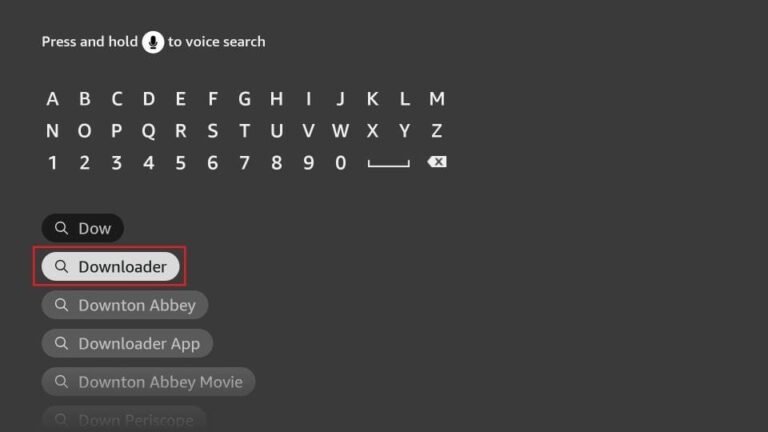
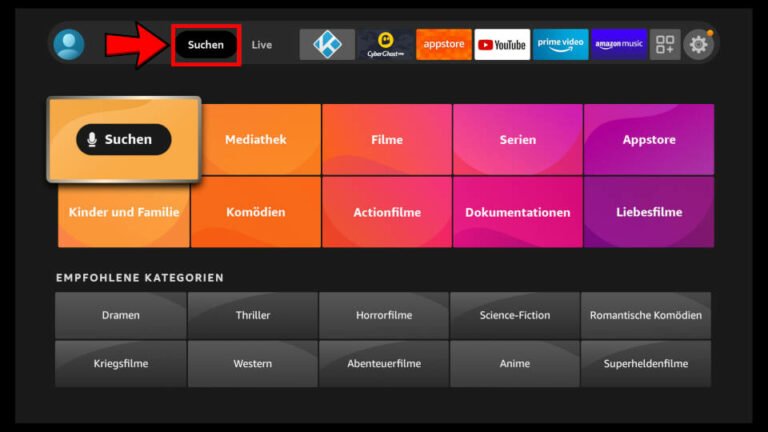
2) On your device’s home screen, go to the Find section and select Find > Search.
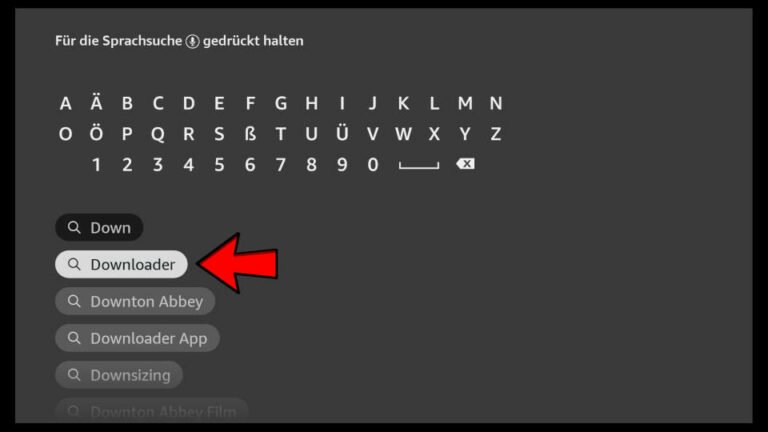
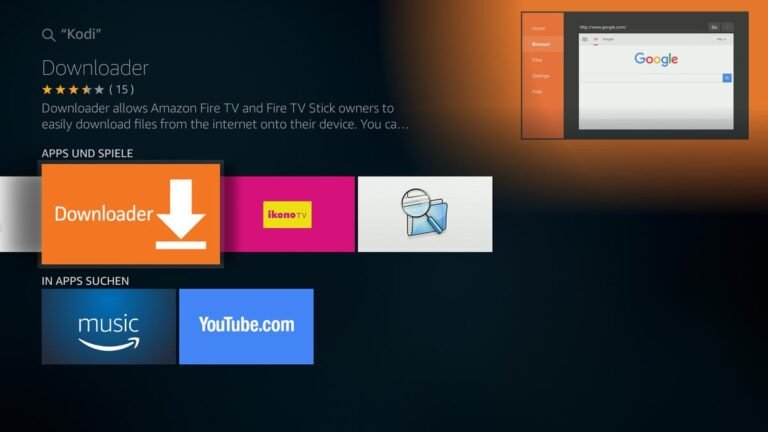
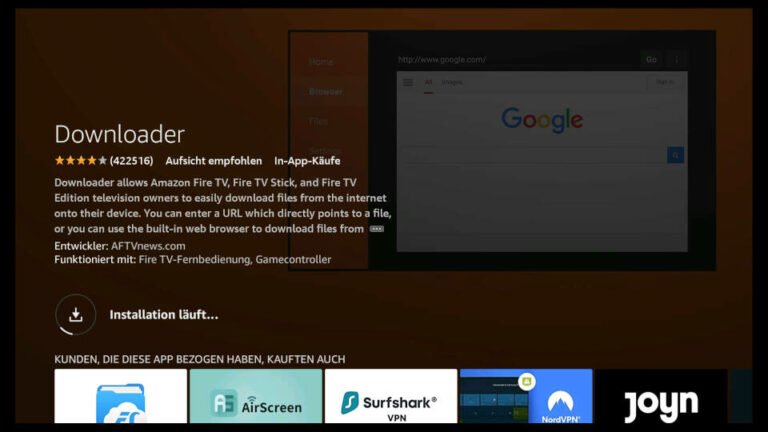
3.Search for the app by typing ‘Downloader’. Once it appears in the search results, select it. On the next screen, click the Downloader icon to download and install the app.
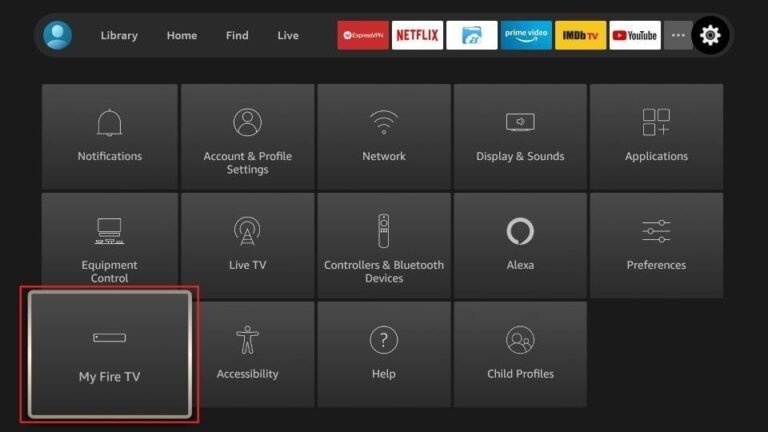
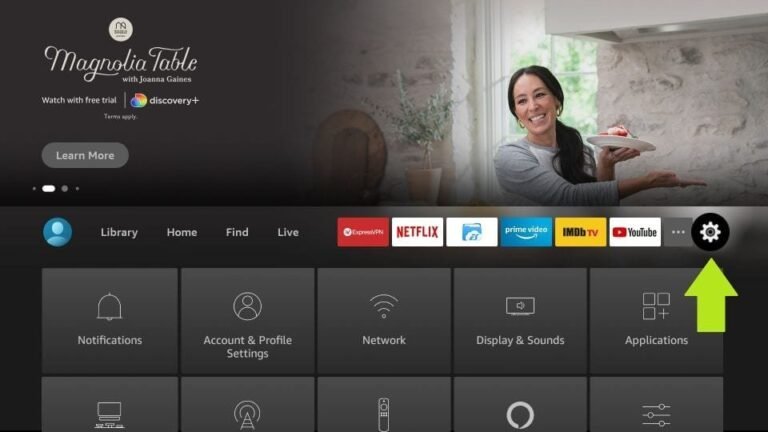
4.Once the Downloader app is installed, return to the Firestick home screen. In the menu bar, select ‘Settings
5.In the Settings, choose the option My Fire TV
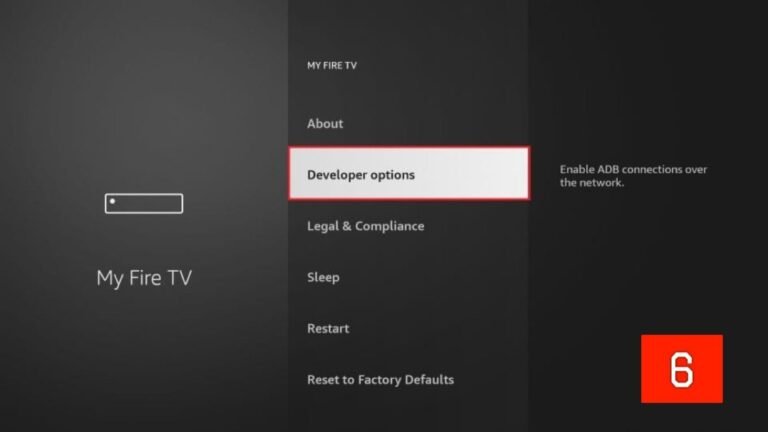
6.On the next screen, select ‘Developer Options’. If you don’t see this option, go to ‘About’, highlight your Firestick’s name, and click it 7, 8, or 9 times to enable Developer Options. Afterward, press the back button on your remote to return to the previous screen, and the option should now be available
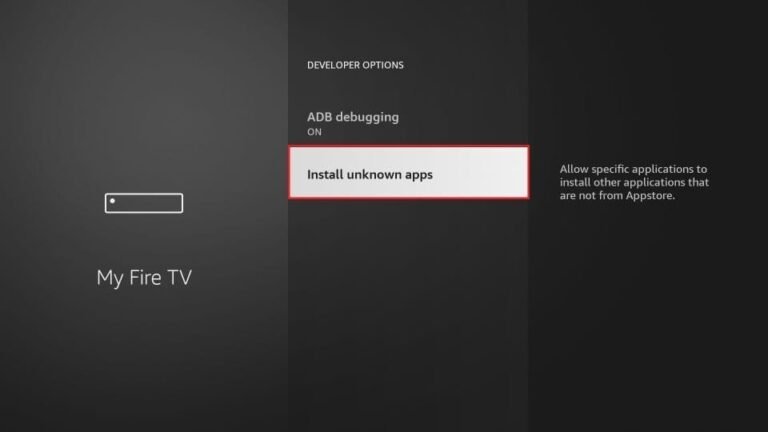
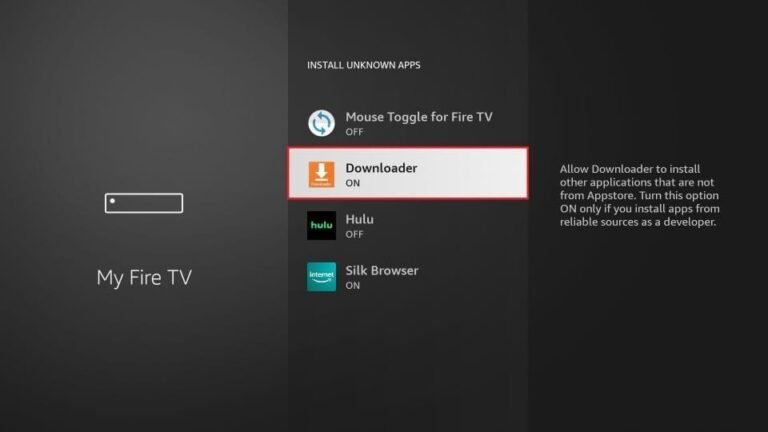
7. Click Install from unknown apps.
8. Click Downloader to change the status to ON.
By doing this, you’ve configured your Firestick to allow the installation of TCH Plus TV and other third-party apps. Now, follow the steps below.
9. Now open the Downloader app. The first time you launch it, you’ll see a few prompts — just dismiss them until you reach the main screen.
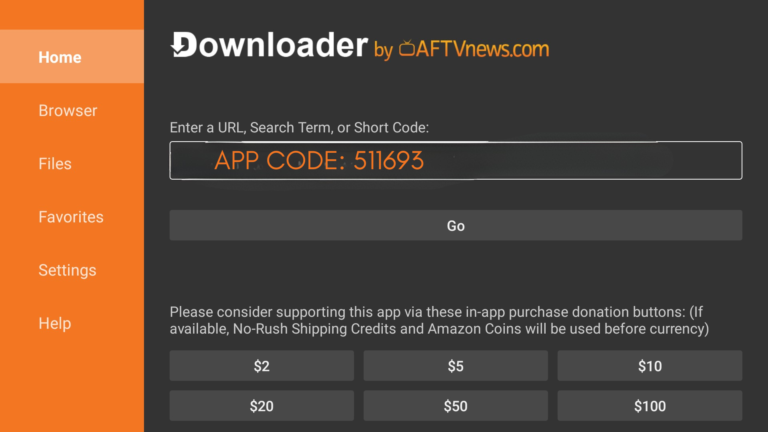
On this screen, click the URL text box on the right (make sure the Home option on the left is selected) where it shows http://.
10. Enter the following Downloader code for the player you want to install:
Downloader App Code: 511693
Wait a minute or two while the selected app downloads to your Firestick.
12. Once the download is complete, Downloader will automatically open the APK file and begin the installation.
13. After the installation finishes, open the app.
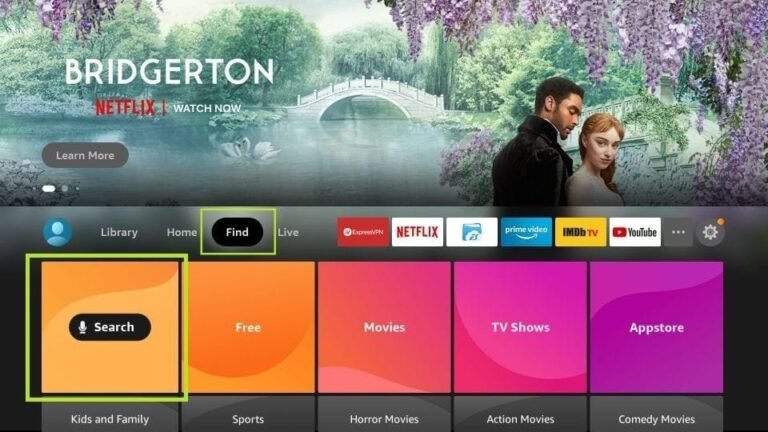
1) From the main menu on your Android TV or Fire TV, go to the Search section and select the Search tile to continue.
2) Type the first few letters of “Downloader” into the search bar, then use the arrow keys and the OK/Enter button on your remote to select the matching result.
3) Open the listing for the Fire TV Downloader app.
4) Press Enter on your remote to start the installation.
5) The app will download. Once the installation is complete, open the app.
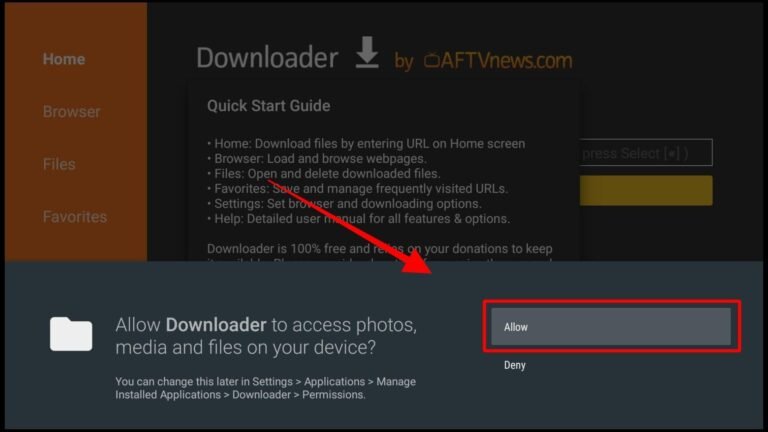
6) When you launch the app for the first time, it will ask for permission to access your files. Select “Allow.”
7) On the Downloader home screen, you’ll see a field in the middle of the screen where you can enter a code. This code will be given to you after purchase or when using a test account. Simply enter the code and press “Go” to continue.
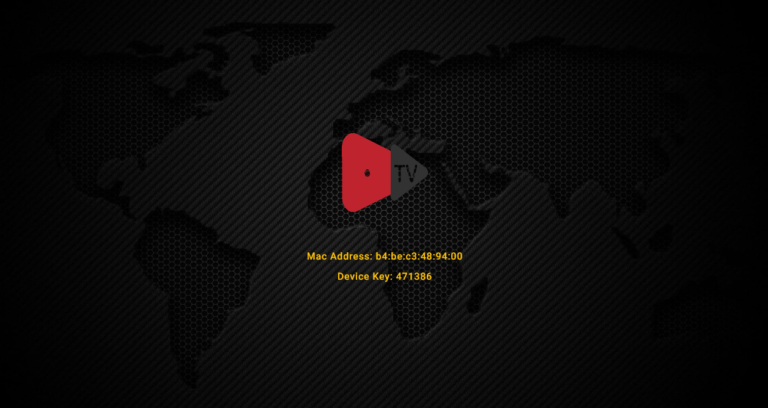
8) The app will now begin downloading. Once it is installed, open it. On the first screen, you will see your MAC address and Device Key — please send them to us so we can activate your account.
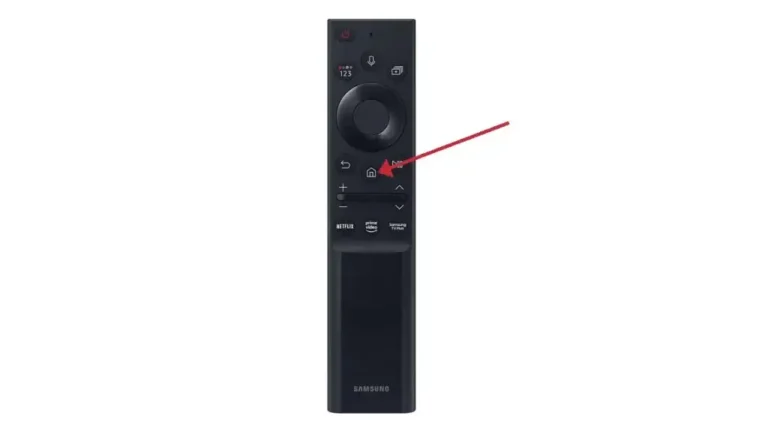
1) Press the Home button on your remote. It is usually represented by a house icon or a 3D cube.
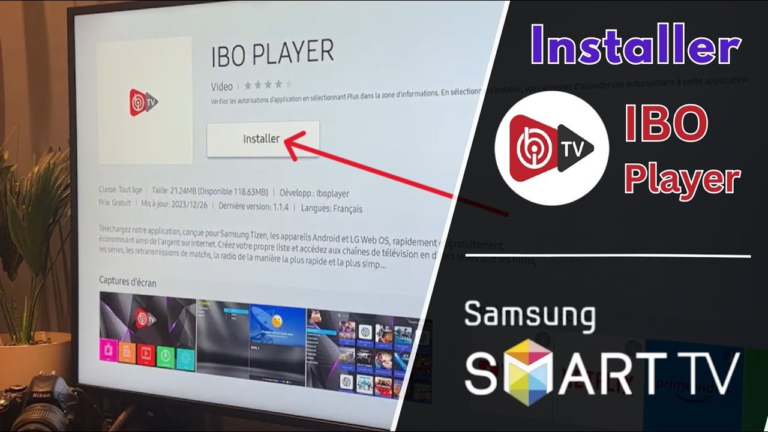
2) Navigate to the Apps section and search for Ibo Player. Once you find the app, select it and proceed with the installation.
3) After the installation is complete, open the Ibo Player app. On the first screen, you will see your MAC address and Device Key. Please send both to us so we can activate your service. Once activated, restart the app and you’re ready to go.
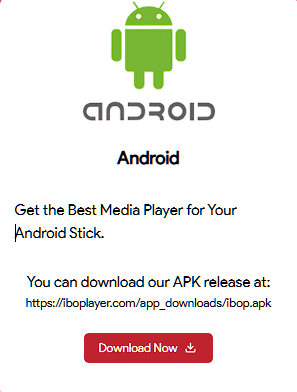
1) Download and install IBO Player. Download link: https://iboplayer.com/downloads
2) After that, open the app. On the first screen, you will see your MAC address and Device Key. Please send both to us so we can activate your account.
1) Download and install IBO Player. Download link: https://iboplayer.com/downloads